


Popular articles
- What Is Rivals of Aether? Game Type, Platforms, and Modes Explained
- Black Myth Wukong Guide – What To Expect From This Amazing New RPG
- Top 5 Gaming Thrones for a Luxurious Gaming Experience
- Is Sonic Triple Trouble 16-Bit Official? Who Is The Bad Guy in Sonic Triple Trouble?
- Among Us Original: Where and How To Play The Classic Game


Updated ROG Xbox Ally guide: Copilot beta, profiles and more
Table of Content

Xbox has refreshed its official getting‑started guide for the ROG Xbox Ally and ROG Xbox Ally X, focusing on day‑one setup and the core features built around Windows and the Xbox full screen experience. The update consolidates tips for navigation, system controls, and personalization, plus how to bring games from multiple PC storefronts into one view. It also highlights the handheld’s Gaming Copilot (Beta) access, offline play preparation, and accessibility options. For returning owners, Xbox reiterates recent improvements aimed at smoother performance and clearer save syncing.
Navigation and setup in Xbox full screen
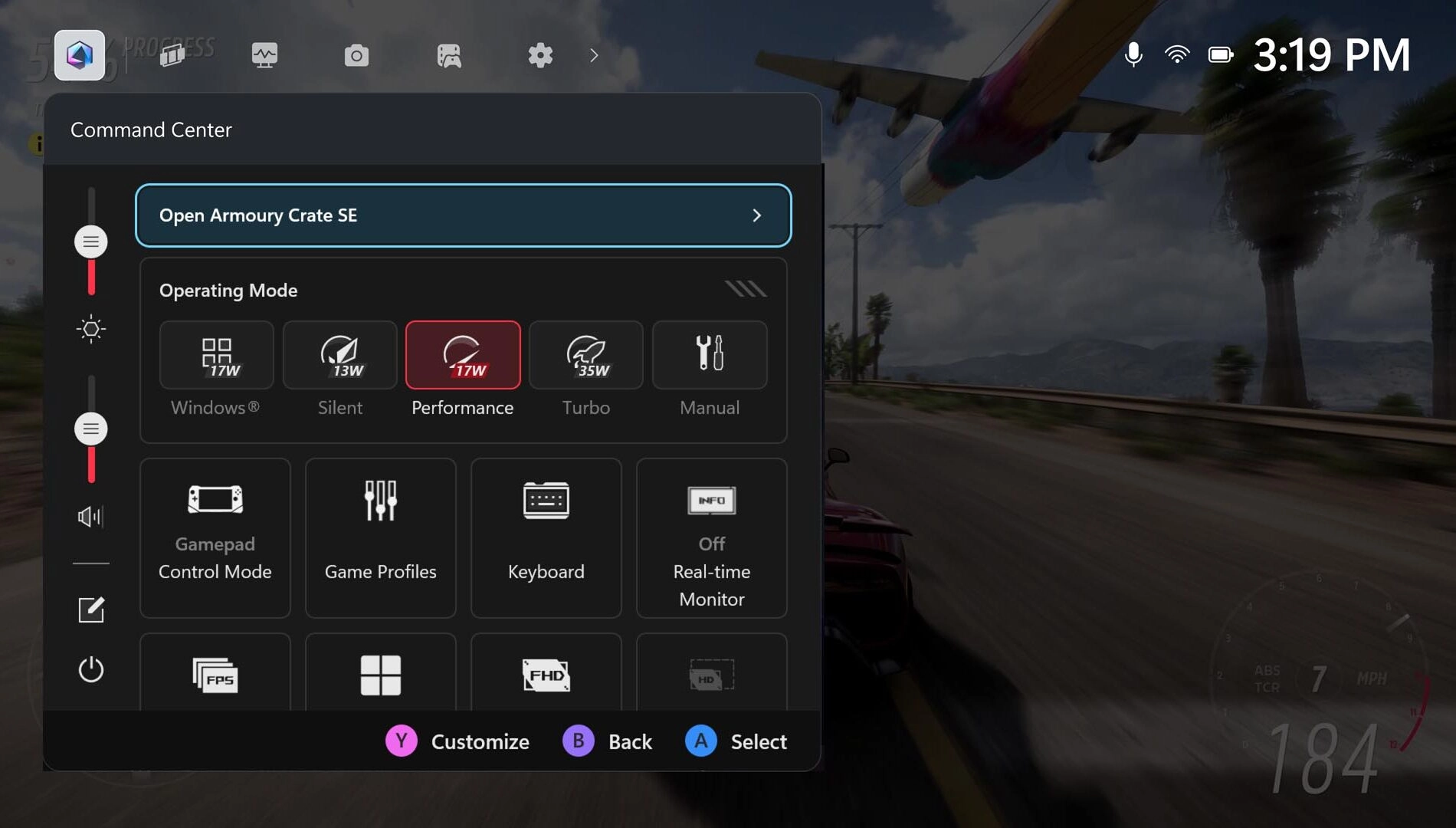
After initial setup (including the optional fingerprint reader for quick unlock), the device boots to the Xbox full screen experience. You can navigate with the d‑pad, joysticks, shoulder/face buttons, or the touchscreen. To open Game Bar settings, press the Xbox button and tap the right bumper, or swipe from the left edge. For the Task Switcher, long‑press the Xbox button or swipe up from the bottom to switch between apps and games.
A brief walkthrough of the interface is available here:

Command Center and Armoury Crate SE
ASUS Command Center is integrated into Game Bar, giving quick access to performance and customization controls in and out of games. For deeper options, launch the full‑featured Armoury Crate SE directly from the overlay to manage system profiles, inputs, lighting, and more.

Gaming Copilot (Beta) on handheld
The handheld supports Gaming Copilot (Beta) for in‑game tips and tracking without leaving the action. To start, long‑press the Command Center button to open the Copilot widget in Game Bar and complete onboarding. Later, long‑press the Library button and release to begin a Copilot conversation for achievement checks or boss‑fight advice.
Library, storefronts and cloud
Press the dedicated Library button above the right thumbstick to see owned titles, Game Pass entries, and games playable via Xbox Cloud Gaming. You can select multiple filters – for example, combining “Owned” and “Installable” to surface games ready for local install – and access the Store from the left rail.
The aggregated gaming library lets you add titles from leading PC storefronts so everything appears in one place. Go to My Apps in the Library and install the storefronts you need. If a launcher is missing, open Edge from My Apps, visit the storefront website, and download it.
Offline play prep
Most single‑player titles can run offline. Before travel, test desired games without a connection, pre‑download updates or DLC, and ensure you are signed in. For detailed steps, see: https://support.xbox.com/en-US/help/games-apps/game-setup-and-play/play-games-offline-on-windows-10-using-offline-mode. On flights, enabling airplane mode can help conserve battery and prevent interruptions.
Read also our article: Rayman 2 and Tonic Trouble join Nintendo 64 classics on NSO
Accessibility and input remapping
The handheld integrates familiar accessibility options from Xbox consoles and Windows 11. Visual, cognitive and sensory features are located via Profile & Settings → Settings → Accessibility in the Xbox interface. Input‑related options – including the on‑screen keyboard, control customizations, and button remapping – are managed in Armoury Crate SE.
External controllers and big‑screen play
Xbox Wireless Controllers can be paired over Bluetooth like on a PC. If you miss the pairing prompt, open Game Bar and go to Settings → Bluetooth → Manage devices → Add device → Bluetooth and follow the on‑screen steps. For TVs and monitors, connect via the USB‑C port (directly or through a dock). For optimal output, use Second Screen Only to match the display’s resolution and refresh rate.
Lighting tweaks and system updates
You can adjust or disable the thumbstick ring lights in Armoury Crate SE → Lighting, useful for low‑light sessions. To stay current, Xbox lists two routine update checks:
- Windows OS update: Game Bar → Settings Widget → More Settings → Open Windows Settings → Windows Update, then install and restart when prompted.
- Armoury Crate SE update: Open Command Center → Open Armoury Crate SE → Update Center → Check for Updates → Update All.
Recent handheld improvements include Default Game Profiles (Preview) – which balance frame rate and power consumption for 40 supported games – plus Game Save Sync Indicators for real‑time cloud‑save confirmation, alongside stability and performance refinements.
Final takeaway – why this matters
The refreshed guide centralizes how to configure and navigate the ROG Xbox Ally family, from Copilot (Beta) assistance to cross‑storefront libraries and offline readiness. For players, that means less setup friction and more time in‑game, with clear paths to stay updated and tailor the handheld to each session.






Meet the Author



Article:
Read all


Solid Snake joins Rainbow Six Siege on March 3. Expect an intel-focused gadget, on-the-fly scavenging, a stealthy 4v4 event with Sam Fisher, and updates across maps and Operators.
 February 15, 2026
 85
85

A year-long Overwatch narrative lands on Switch. Season 1 opens the Reign of Talon, adds 5 heroes, and introduces a 5-week faction event—setting the stage for updates through Season 6 in 2026.
February 14, 2026
82

A new chapter in Kratos’ past arrives on PS5. Sons of Sparta shifts the series to 2D, exploring the Agoge with Deimos, classic Greek foes, skill trees, and Gifts of Olympus – all scored by Bear McCreary.
February 13, 2026
80

Assassin’s Creed Origins steps into the museum space as Ubisoft and the Musée de l’Homme unveil a nine-minute interactive walkthrough of ancient Egyptian embalming, part of the Mummies exhibition running November 2025 - May 2026.
February 13, 2026
77
Subscribe to “By-Gamers” on Telegram for gaming intel.
No filler, no fuss—just your daily XP boost. Hop in and level up, squad!


Read also
Solid Snake joins Rainbow Six Siege on March 3. Expect an intel-focused gadget, on-the-fly scavenging, a stealthy 4v4 event with Sam Fisher, and updates across maps and Operators.
February 15, 2026
85
A year-long Overwatch narrative lands on Switch. Season 1 opens the Reign of Talon, adds 5 heroes, and introduces a 5-week faction event—setting the stage for updates through Season 6 in 2026.
February 14, 2026
82
A new chapter in Kratos’ past arrives on PS5. Sons of Sparta shifts the series to 2D, exploring the Agoge with Deimos, classic Greek foes, skill trees, and Gifts of Olympus – all scored by Bear McCreary.
February 13, 2026
80
Assassin’s Creed Origins steps into the museum space as Ubisoft and the Musée de l’Homme unveil a nine-minute interactive walkthrough of ancient Egyptian embalming, part of the Mummies exhibition running November 2025 - May 2026.
February 13, 2026
77

High On Life 2 is out now, and its writers say the best gags start with the team cracking up first — then shaping bits so players help drive the punchlines. Here’s how Squanch approaches humor-by-design.
February 13, 2026
61
Rainbow Six Siege’s competitive year ends in Paris with a new twist: 1V1 NOW by Xbox Game Pass. Four regional standouts, 3.2k sign-ups behind them, clash Feb 14-15 for a share of $5,000 on the SI stage.
February 13, 2026
70
Fourteen Xbox titles arrive February 17-20 – from Star Trek: Voyager’s survival strategy to stealth in Styx and horror in Backrooms. Dates, platform notes, and core gameplay features inside.
February 13, 2026
63
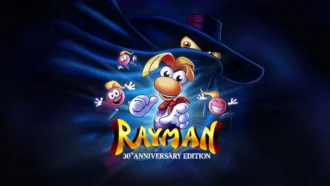
Rayman’s 1995 debut returns in a multi-version package – with a first-ever playable SNES prototype, 120 bonus stages, a reimagined Christophe Héral soundtrack, and modern assists like a 60-second rewind.
February 13, 2026
62
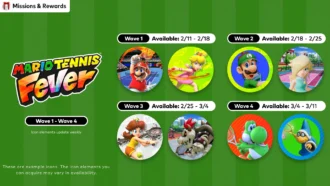
Mario Tennis Fever icon elements arrive on a ticking schedule—four waves across February-March 2026. Here are the exact PT dates, how to access them, and what the game brings to the court.
February 13, 2026
68
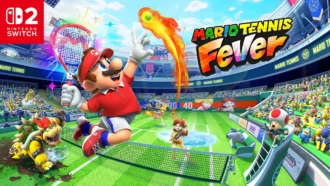
Nintendo serves up Mario Tennis Fever on Switch 2 with its biggest roster yet, 30 new Fever Rackets that twist rallies in wild ways, and a baby-themed Adventure Mode. Check the official trailer link inside.
February 13, 2026
67

Співпраця
Співпраця - текст
By-Gamers Newsletter!
Unlock special gaming deals, limited-time bundles, and more - sign up for By-gamers newsletter today!
